iClassPro guides
Transferring classes in the customer portal
By in2tennis admin ·
How do I submit a transfer request through the customer portal?
- 1
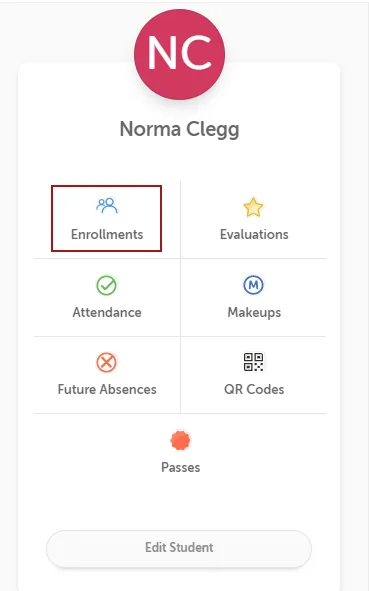
Open the student's enrolments
After logging in, click My Account in the toolbar (in the mobile app, select Account from the bottom toolbar), select the student, then click Enrollments. This brings up a list of the student's current enrolments.
- 2
Press Transfer Enrollment
Click the Transfer Enrollment button next to the class you wish to transfer from. Note: you cannot submit more than one transfer request from an existing enrolment. If there is a waitlist enrolment from a previous request you'll be prompted to cancel it or contact us.
- 3
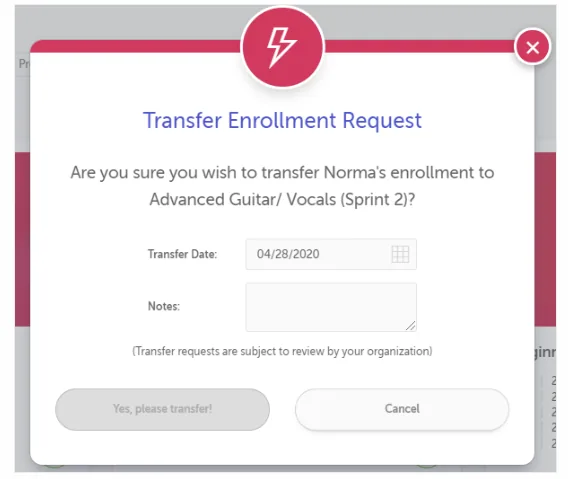
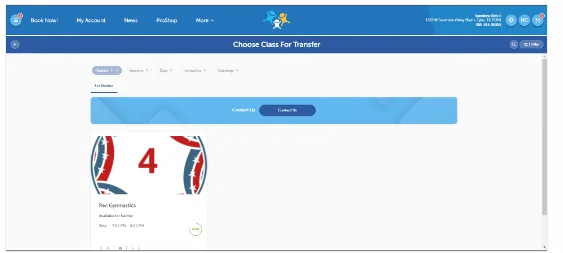
Choose the new class and confirm
Click the class you wish to transfer into. Enter the transfer date (when you want to start the new class) and any notes explaining the request, then click “Yes, please transfer!”.